Connecting WhatsApp Business
Sociovite integrates directly with the official Meta WhatsApp Cloud API via Meta Embedded Signup. This integration provides enterprise-grade message delivery performance, full Meta policy compliance, and zero risk of bans or logouts caused by unauthorized third-party WhatsApp bots.
Choose How to Add Your Number
You can add a WhatsApp number in two ways:
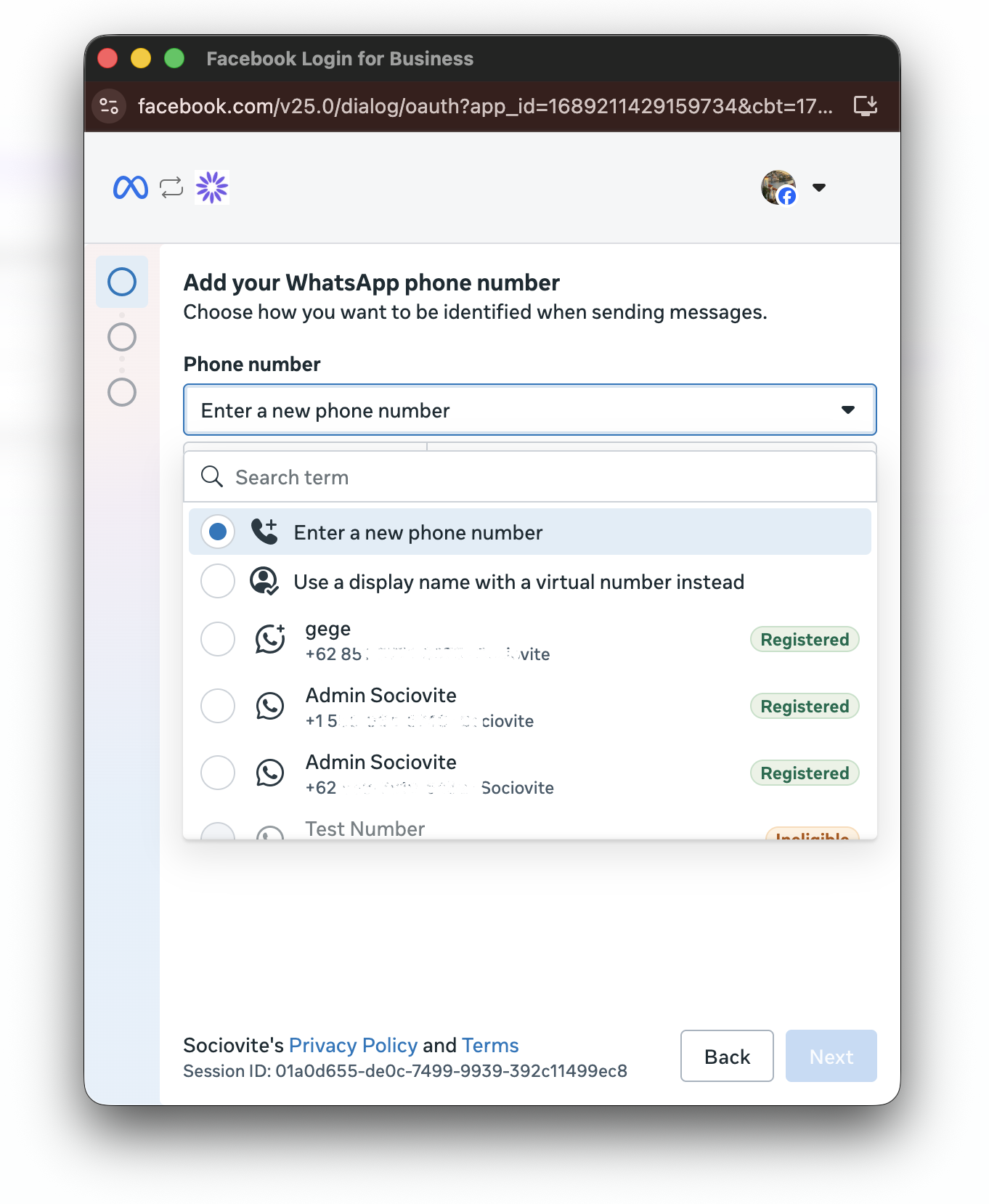
Add a number through Sociovite (Most Convenient): Click Connect WhatsApp Business in Sociovite and complete the setup in the Meta authorization window. You can select an existing number or add a new one.
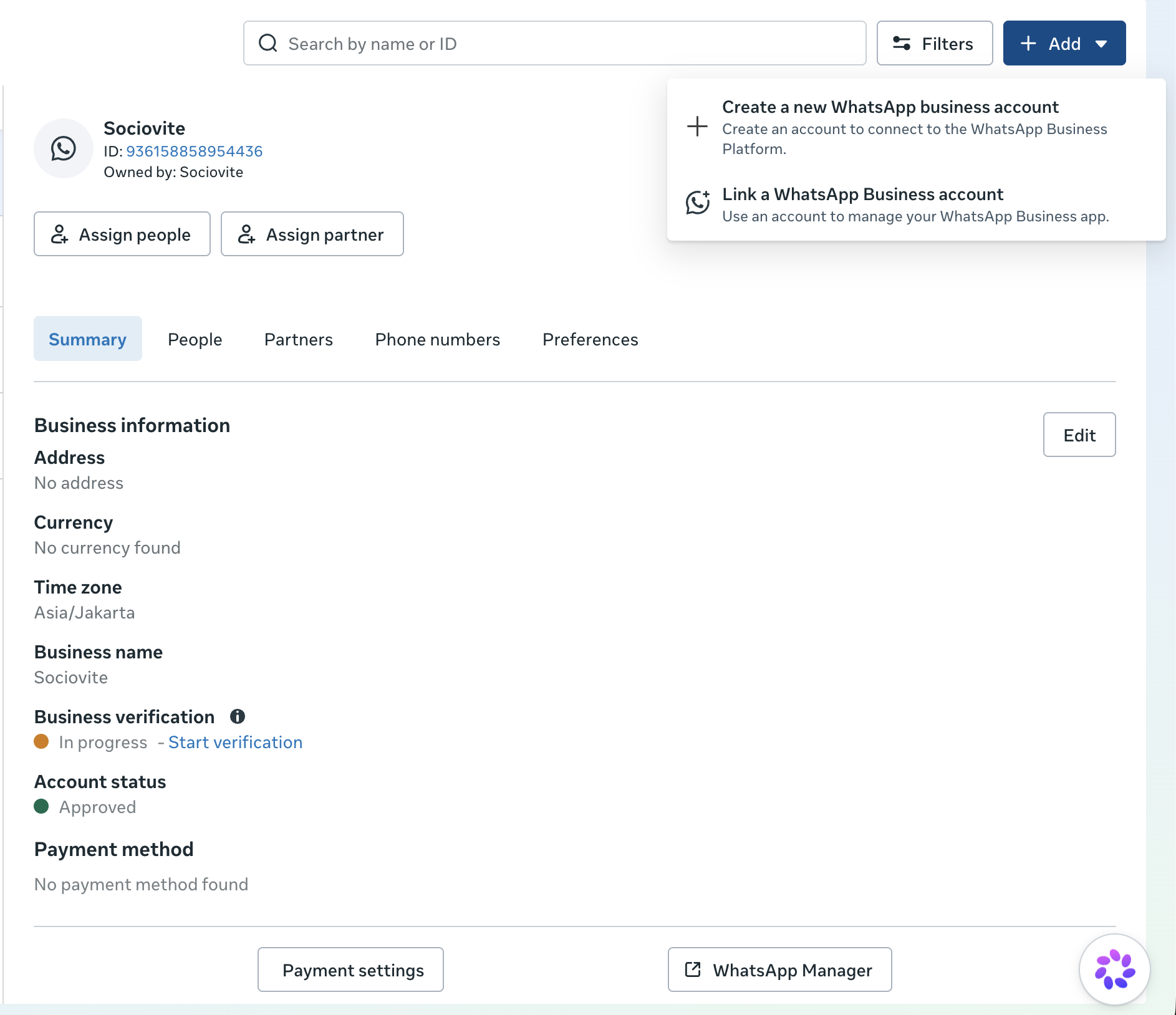
Via Meta Business Suite First (business.facebook.com): Add your number in Meta Business Suite > WhatsApp accounts using the + Add button, either via Create a new WhatsApp business account or Link a WhatsApp Business account. Once saved in Meta, the number automatically appears in Sociovite's popup dropdown ready for selection.
Select Your Number
During the Meta setup, choose the option that matches your number:
Existing number registered in WhatsApp Business: Select the number from the list and click Next. No new verification is required.
New or unregistered number: Select Enter a new phone number, then enter the number. Meta will send a 6-digit verification code by SMS or voice call to verify ownership.
Number currently active in the WhatsApp Business app: Enter the active number. Meta will display a QR code and send a verification chat to the WhatsApp Business app. Open the chat and tap Connect to complete the linking process with a [Connect] button to confirm account linking (Link a WhatsApp Business account).
Connection Steps
Step 1: Start the Connection
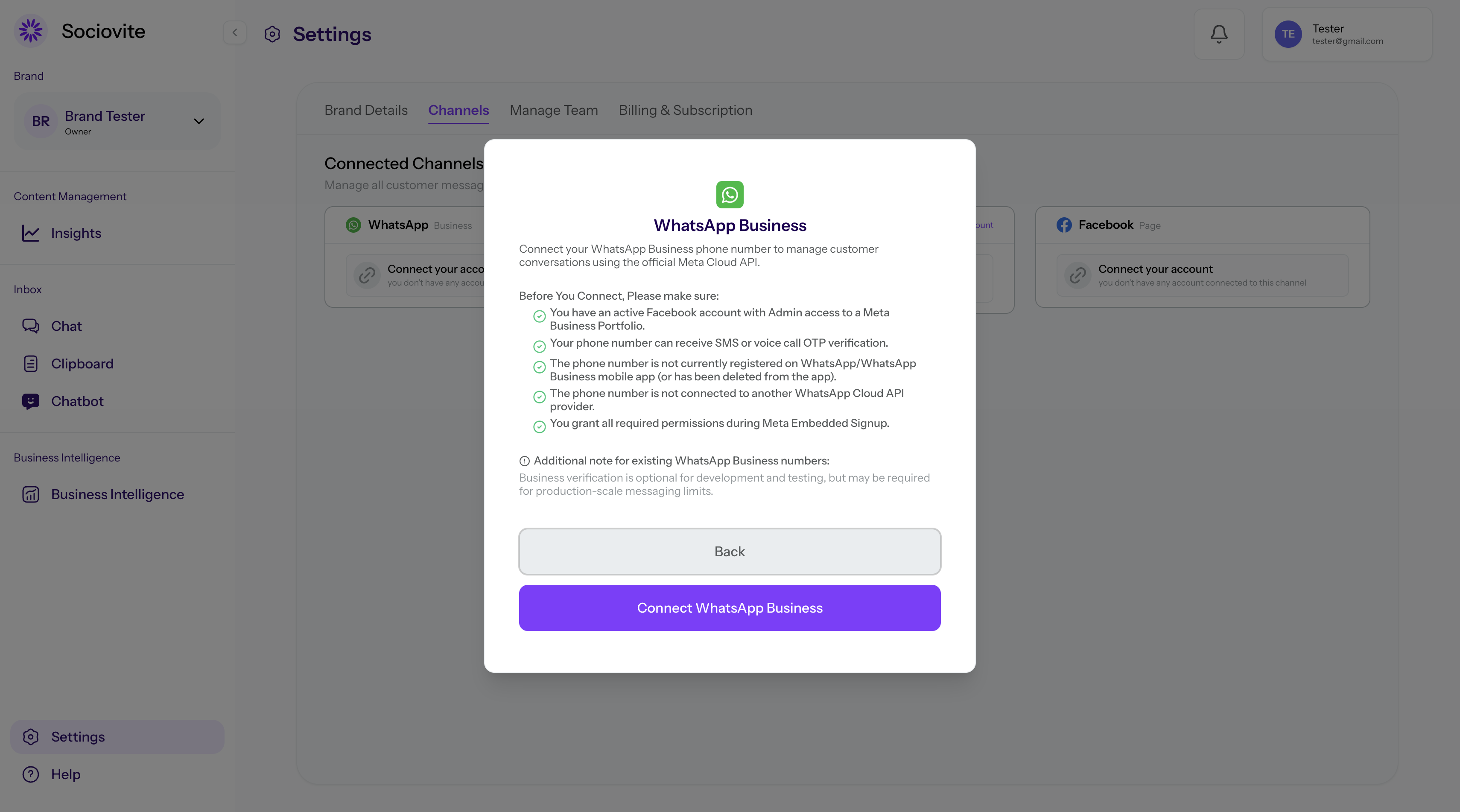
1. In Sociovite, go to Settings > Channels.
2. On the WhatsApp Business card, click Connect your account.
3. Review the requirements, then click Connect WhatsApp Business
Make sure you are logged in with the Facebook profile that holds Administrator access to your Meta Business Manager account.
Step 2: Complete Meta Authorization
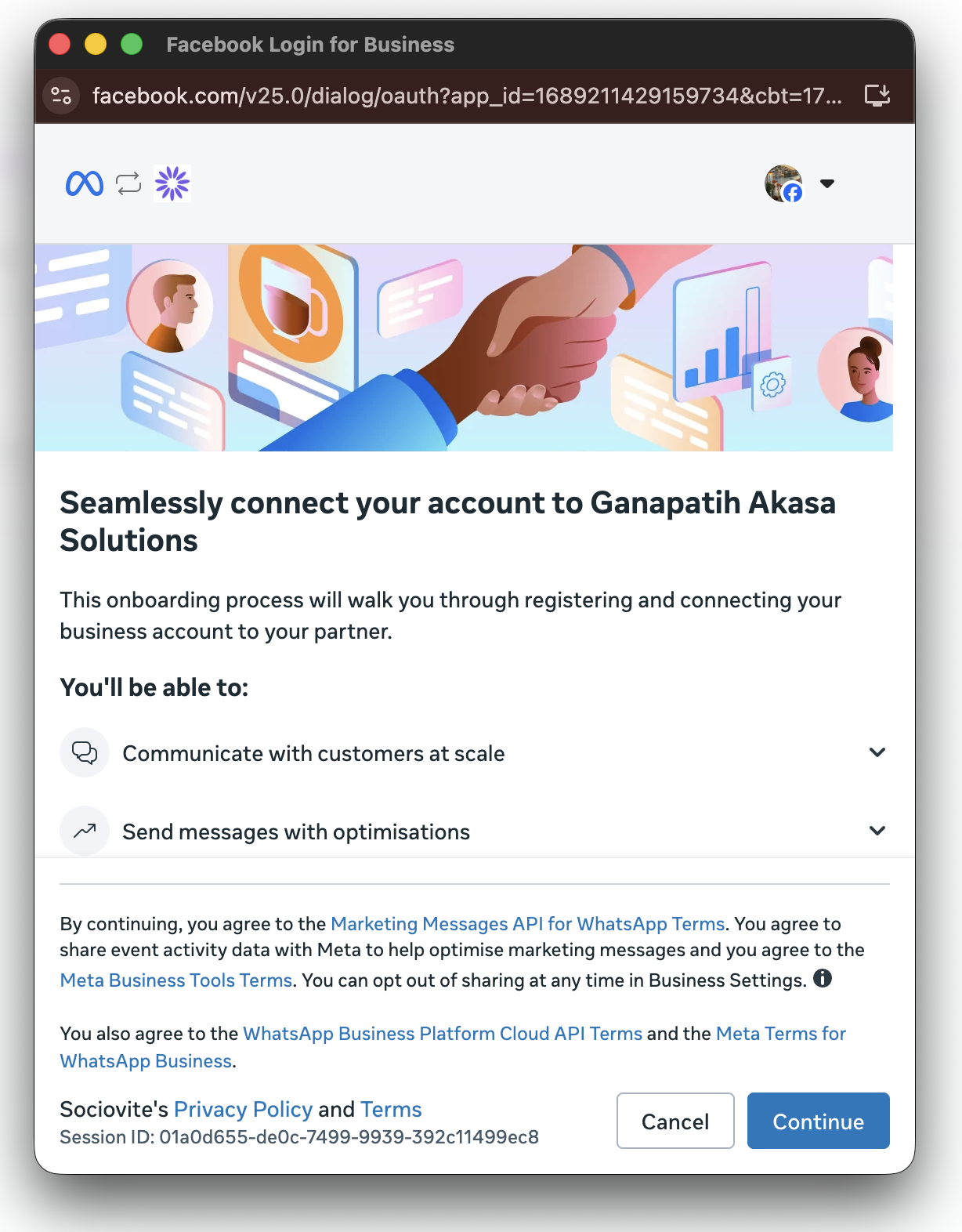
1. The Meta authorization window will open.
2. Click Continue and sign in with the Facebook account that manages your Meta Business account.
3. Review and approve the requested permissions.
Why do I see Ganapatih Akasa Solutions?
Ganapatih Akasa Solutions is the certified Meta Business Solution Provider powering Sociovite's WhatsApp Cloud infrastructure. Authorizing this connection allows Sociovite to securely manage incoming and outgoing WhatsApp messages on your behalf.
Step 3: Verify the Number
Select the phone number you want to use from the Add your WhatsApp phone number dropdown.
For Existing Active Numbers:
Check your mobile WhatsApp application immediately. Meta will deliver an official verification message from a verified badge account. Tap the [Connect] button inside the chat to authorize linking your active mobile number to the business platform.
For New / Fresh Phone Numbers:
Ensure your SIM card can receive SMS or voice calls to receive the 6-digit OTP code. This number must not be registered on a regular WhatsApp mobile app before onboarding.