Connecting Instagram via Facebook Page
This method is Meta's official and most recommended standard as it provides optimal connection stability and seamless integration with Meta Business Suite.
Step 1: Switch to a Professional Account in the Instagram Mobile App
Open the Instagram app on your mobile device, go to your profile, and tap the three-line (☰) menu icon in the top right corner.
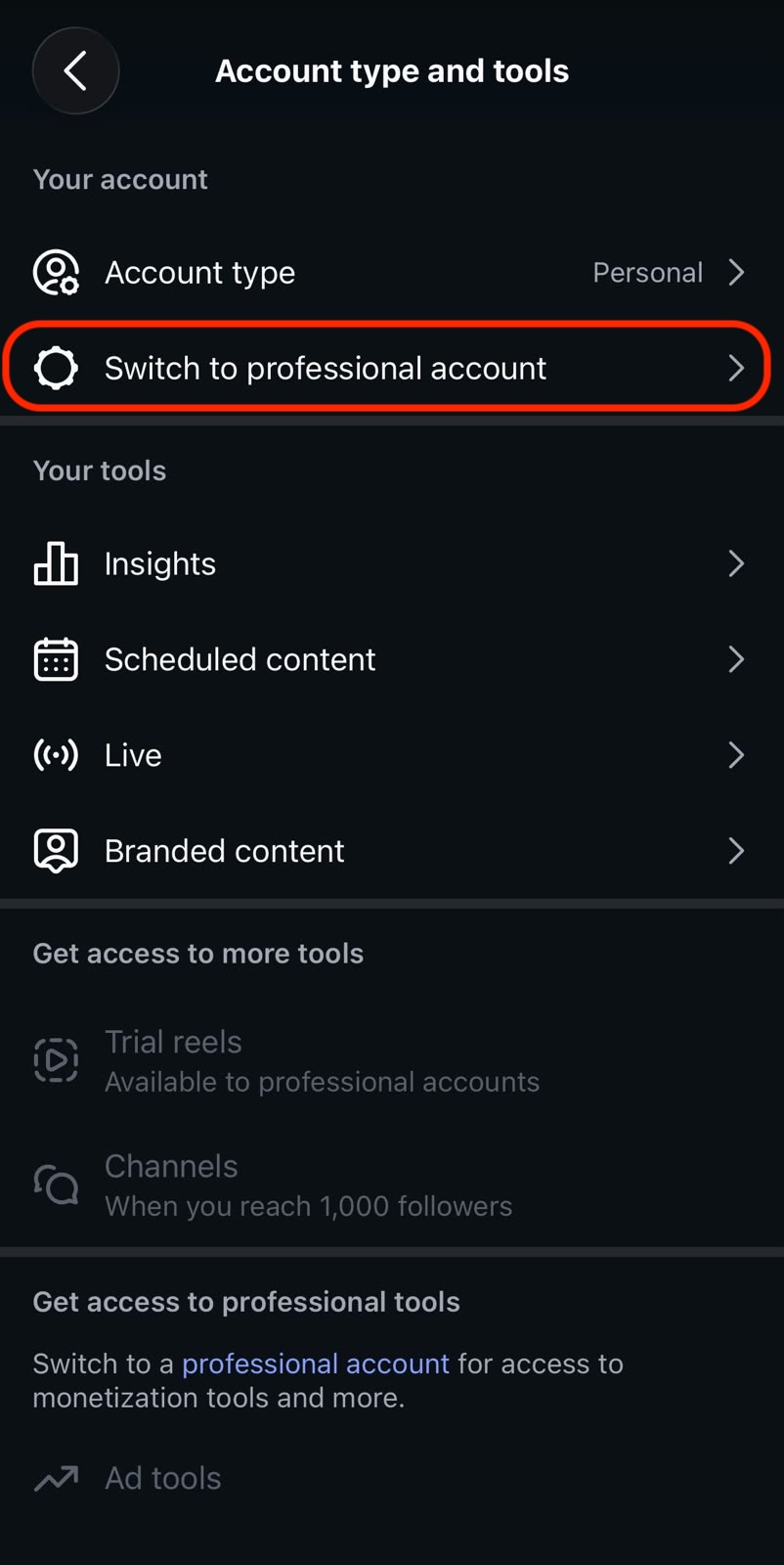
Select Account type and tools > Switch to professional account.
Choose Business or Creator, their complete the on-screen setup.
Step 2: Enable Message Access Permission
This setting allows Sociovite to receive Instagram messages.
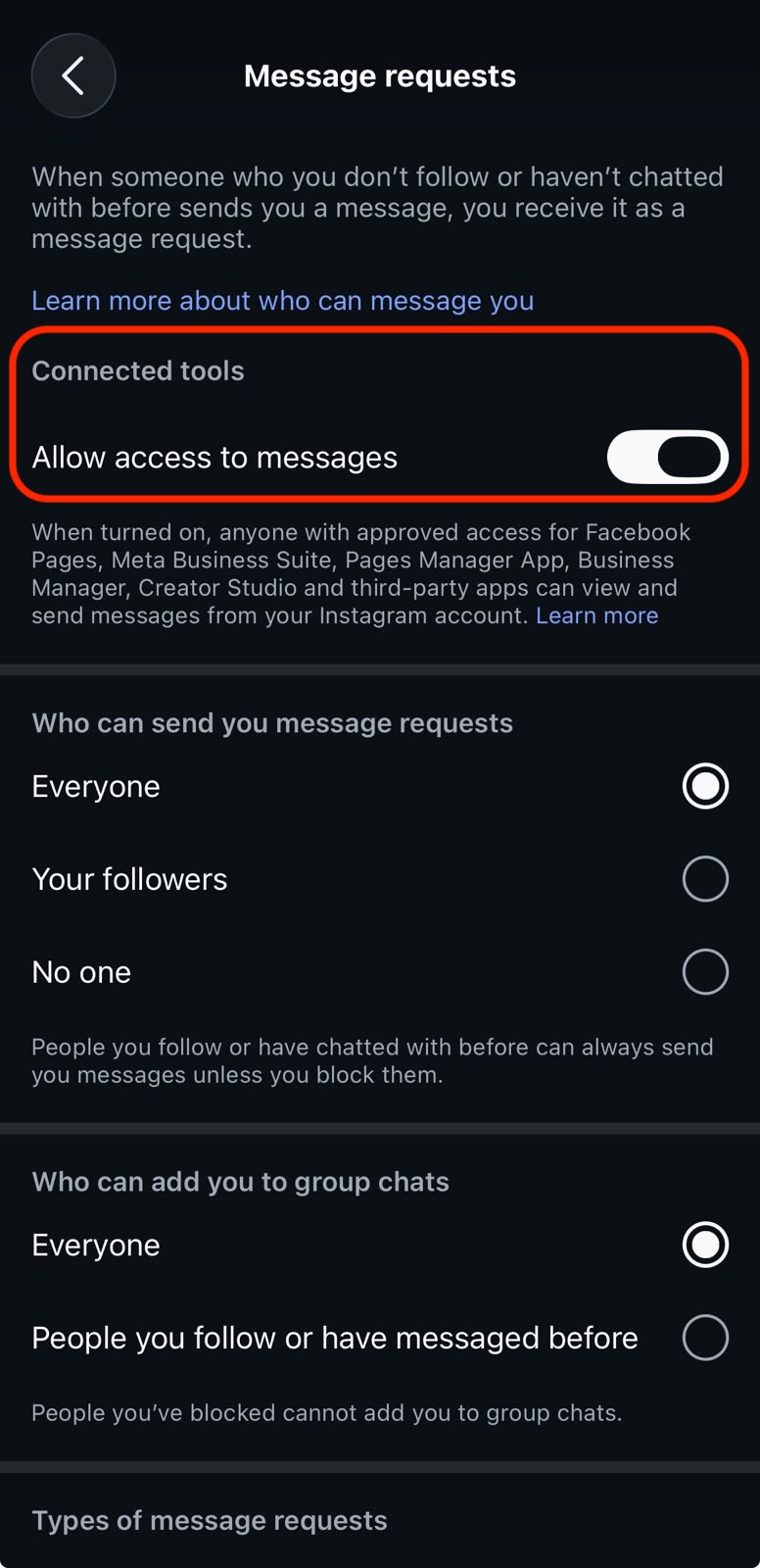
In the Instagram mobile app, open Settings and privacy.
Go to Messages and story replies > Message request.
Under Connected tools, turn on Allow access to messages.
Step 3: Link Instagram to Your Facebook Page
Ensure your Instagram professional profile is officially connected to the Facebook Page you manage:
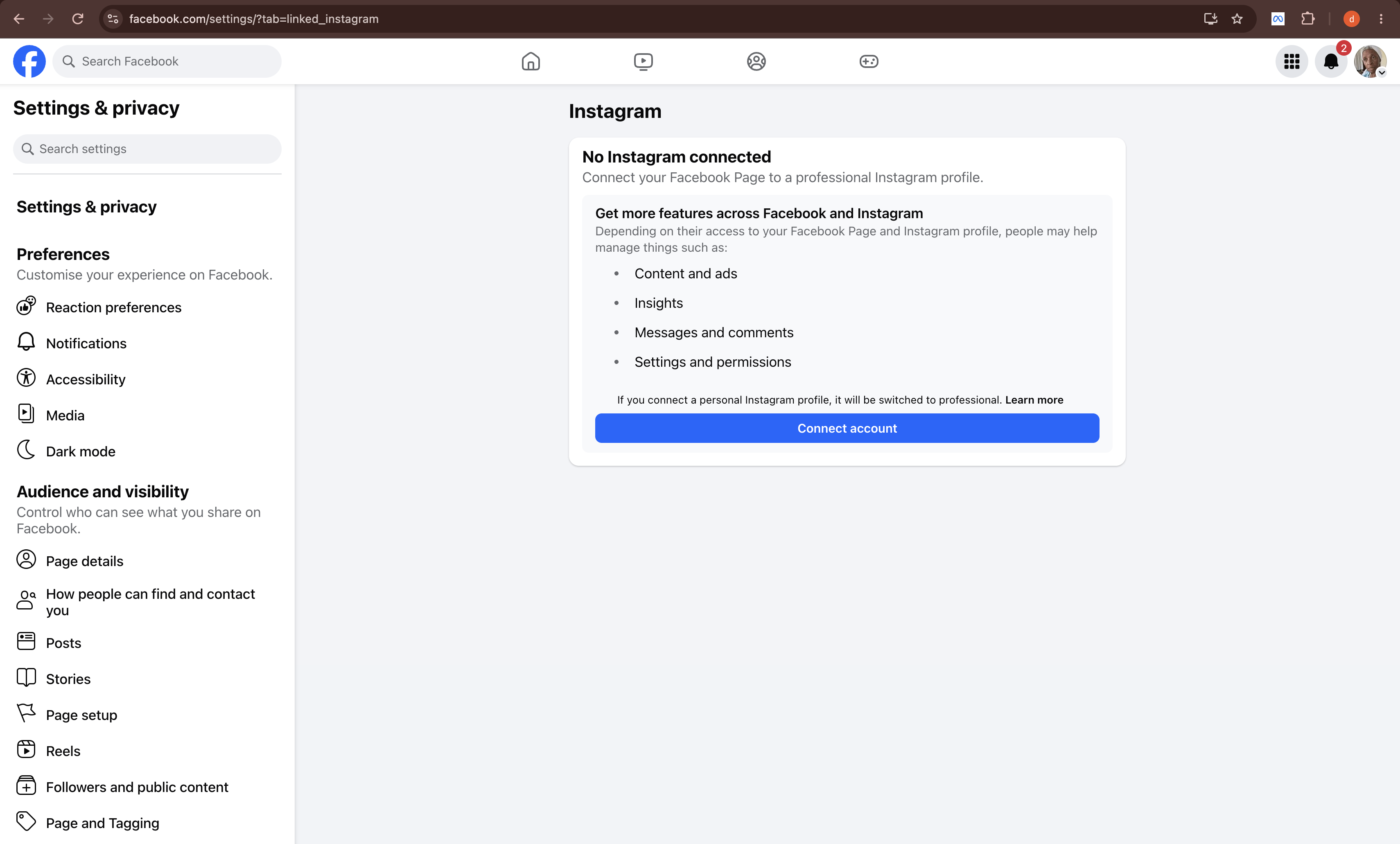
On a desktop browser, open Facebook and go to the Facebook Page linked to your Instagram account.
Go to Settings > Linked Accounts > Instagram.
Click Connect Account.
Sign in to your Instagram account and follow the prompts to complete the connection.
Step 4: Authorize in the Sociovite
Open Settings > Channels in Sociovite, then click Connect your account on the Instagram card.
Select Via Facebook Page, log in to Facebook, select the Facebook Page linked to your Instagram account, and approve the messaging permissions.
Return to Sociovite and make sure the Instagram account status is Connected.